Adapting TCP Devices
This example shows how to use the
dobot-plusskill in an AI Agent to adapt external devices that communicate over TCP/IP. Unlike Modbus protocols, TCP devices typically use custom messages (strings or binary frames). The Skill generates plugin scaffolding from message formats and function descriptions inRequirements.md—you only need to prepare the document and invoke/dobot-plusin the IDE.
Example Workflow
Environment Setup
Confirm the following before development. See Development Environment for more detail.
| Dependency | Version / Notes |
|---|---|
| Node.js | v20 or later |
| IDE | Supports Agent Skills (e.g. Cursor) |
| @dobot-plus/cli | Global install; provides the dpt command |
| @dobot-plus/skill | Global install; provides the /dobot-plus skill |
Install:
npm install -g @dobot-plus/cli @dobot-plus/skill@latest
Verify:
node -v    # Should print v20.x or later
dpt -v     # Confirm CLI works
After install, the Skill is deployed to ~/.agents/skills/dobot-plus. Enable Agent Skills in your IDE settings to use it.
Writing Requirements.md (General Requirements)
The Skill does not create or modify Requirements.md. You must write a complete TCP communication document in the project root.
Required Content
| Category | Description |
|---|---|
| Communication protocol | Protocol type TCP, connection role (client / server) |
| IP address | Device or host IP, e.g. 192.168.5.1 |
| Port number | TCP port, e.g. 123 |
| Message format | Send templates, response format, delimiters, terminators (e.g. \n) |
| Function semantics | Each atomic operation exposed externally (send command / read response / status query) |
| Operation flow | Typical interaction sequence (connect → send → wait for response → disconnect or keep alive) |
Recommended Outline
- Device overview
- Communication protocol (TCP params: IP, port, connection mode)
- Message protocol (command format, response format, examples)
- Function list (split into atomic operations)
- Operation flow
- Version info and safety notes
Split functions into atomic operations whenever possible—each function should do one thing. Use camelCase Verb+Noun naming, e.g. MoveUp, GetPosition.
TCP vs Other Protocols
| Item | Custom TCP | Modbus RTU / TCP | I/O control |
|---|---|---|---|
| Protocol field | "protocol": "tcp" | "protocol": "modbus-*" | "protocol": "io" |
| Connection params | IP address, port | Register addresses + comm params | DI/DO port numbers |
| Underlying API | sendRequest (TCPWrite/Read) | Register read/write | DI / DO |
| Document focus | Message format and interaction flow | Register map, bit fields | Port numbers and level semantics |
| Generates modbus.lua | No | Yes | No |
TCP API reference: TCP commands. For manual TCP plugin development, see Basic TCP/IP example.
Generate with AI
If you have device communication specs or vendor manuals, ask a general-purpose AI model to turn TCP message definitions into Requirements.md, review it, and save it in the project root.
Sample AI prompt:
You are an industrial device TCP communication documentation assistant. From the materials I provide, produce a Requirements.md document that meets the requirements below.

## Output requirements
1. Output Markdown only from my materials; do not invent IP, port, message formats, or timing
2. Mark uncertain items as "TBD"; do not guess
3. Keep function names in English camelCase, e.g. MoveUp, GetStatus

## Must include
1. Device overview
2. Communication protocol: TCP params (IP address, port, client/server role)
3. Message protocol: send format per command, expected response format, delimiters and terminators
4. Function list: one atomic operation per item, with message content and return value parsing
5. Typical operation flow (e.g. connect → send command → wait for response)
6. Version info and safety notes

## Function splitting rules
- One action per function; camelCase Verb+Noun naming
- Do not merge: MoveAndStop, ControlDevice, etc.
- Separate send and read functions
- Read functions must define return value meaning

The device model to adapt is: <device model name>
After generation, verify manually:
- IP address and port match on-site device settings
- Message format (delimiters, terminators) matches the device manual
- Response parsing rules are clear
- Functions are split into atomic operations
Save the file as Requirements.md in the project root, then invoke /dobot-plus in an IDE Agent session.
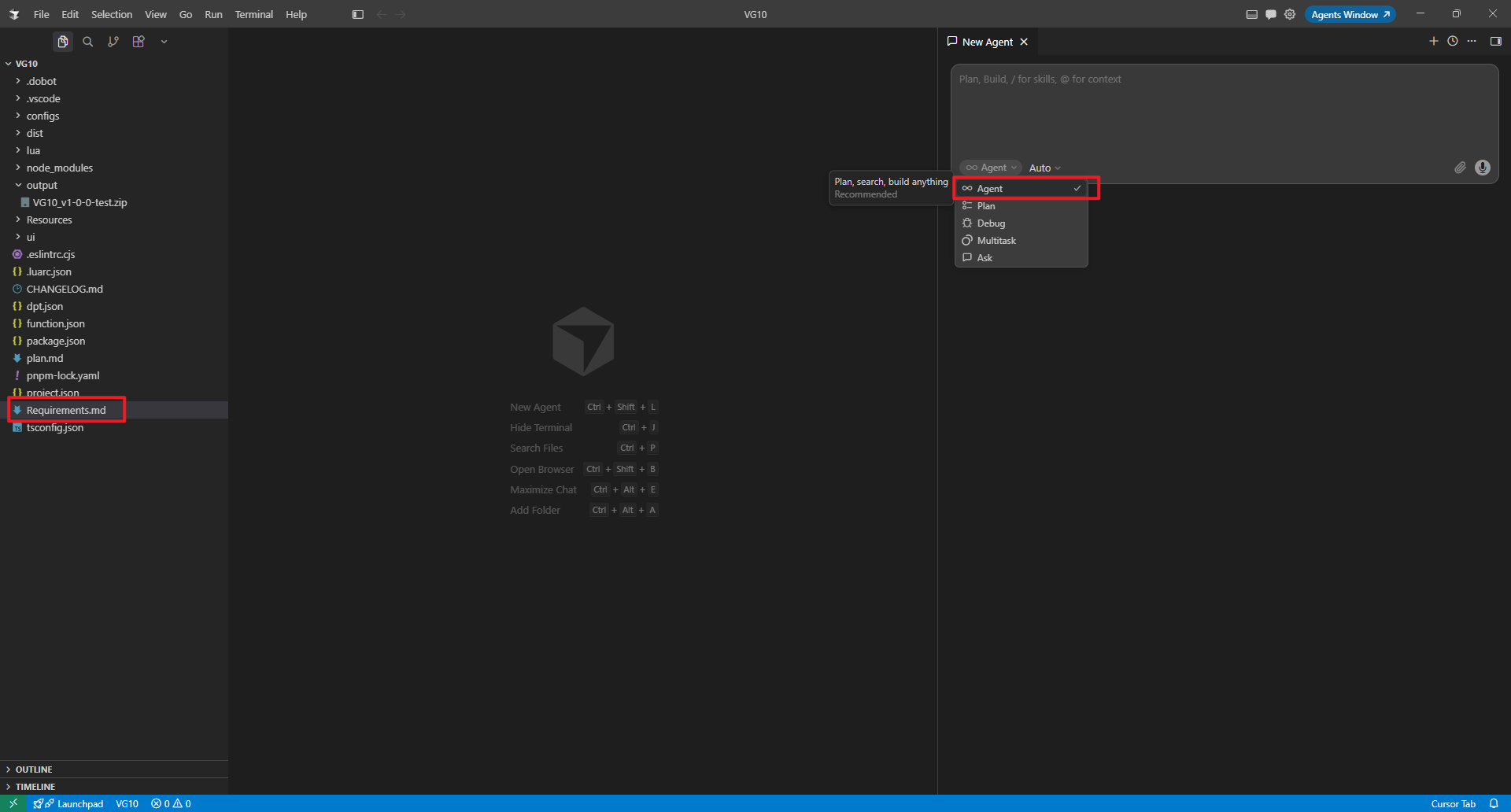
Select Agent mode:
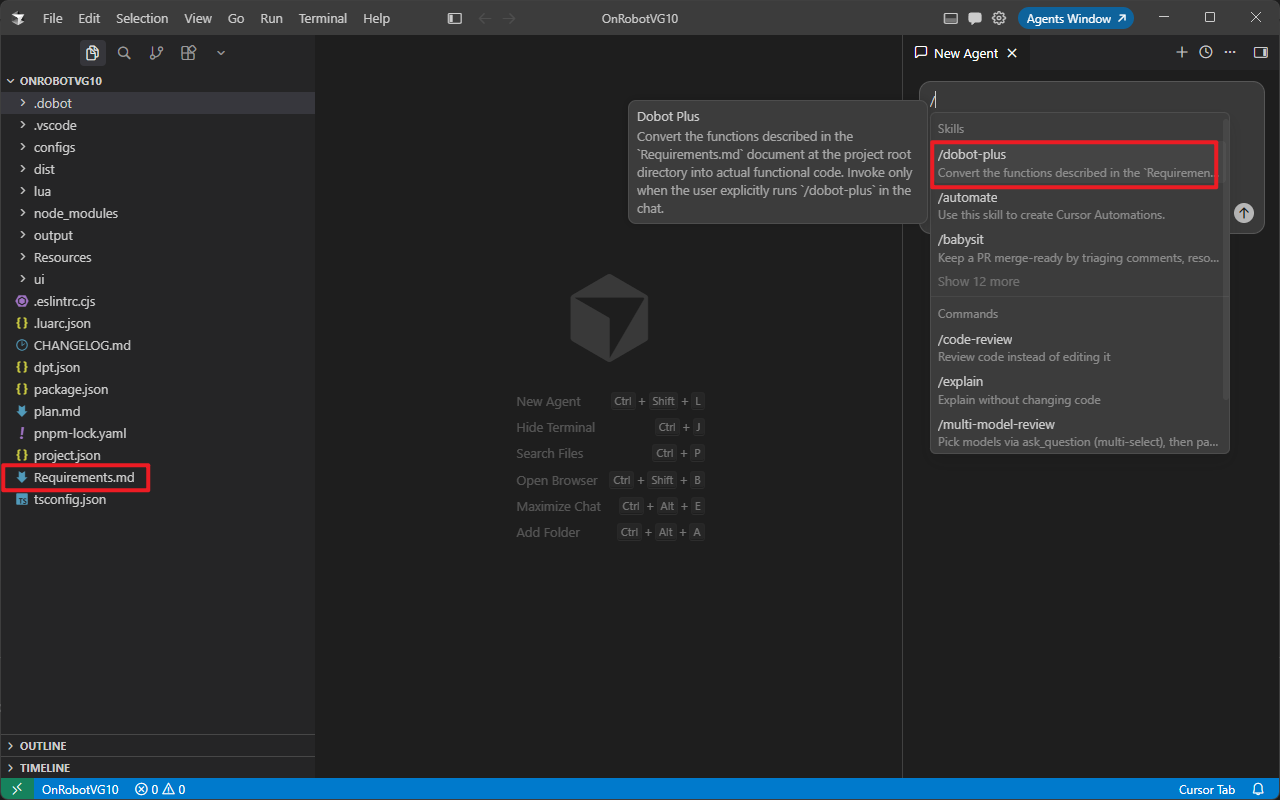
Invoke the /dobot-plus skill:
Device Examples
The example below controls an external lift column over TCP/IP: send position commands and read responses. Run dpt create first, then write Requirements.md.
Lift column TCP control
Create project:
dpt create
Example prompts:
$ dpt create
? Please input plugin name: lift
? Please input plugin description: A plugin demo for lift control via TCP
? Please input plugin version: 1-0-0-test
? Please input device IP: 192.168.5.1
Then:
cd lift
Full lift TCP Requirements.md example
# Lift Column TCP Control

> Send position commands to an external lift column over TCP/IP and read device responses.

## 1. Device overview

This plugin controls an external lift column using custom TCP messages—no Modbus or I/O communication.

## 2. Communication protocol

| Item             | Description                            |
| ---------------- | -------------------------------------- |
| Protocol         | TCP                                    |
| Connection role  | Robot acts as **TCP client**           |
| IP address       | 192.168.5.1                            |
| Port             | 123                                    |
| Message encoding | ASCII string, terminated with `\n`     |
| Lua API          | `sendRequest(msg)` to send and receive |

## 3. Message protocol

### 3.1 Move to absolute position

- **Send format:** `moveTo_absolutePosition,<position>\n`
- **Parameter:** `position` is an integer (mm or device-specific unit)
- **Response:** Device returns a confirmation string (mark as TBD if unknown)

**Examples:**

| Action      | Send message                    |
| ----------- | ------------------------------- |
| Move to 100 | `moveTo_absolutePosition,100\n` |
| Move to 50  | `moveTo_absolutePosition,50\n`  |

## 4. Functions

### 4.1 MoveTo — move to specified position

- Action: call `sendRequest("moveTo_absolutePosition," .. position .. "\n")`
- Parameter: position (number, target position)
- UI: input + button

### 4.2 MoveUp — move up

- Action: add a fixed offset (e.g. +50) to current position, send `moveTo_absolutePosition,<newPosition>\n`
- UI: button

### 4.3 MoveDown — move down

- Action: subtract a fixed offset (e.g. -50) from current position, send `moveTo_absolutePosition,<newPosition>\n`
- UI: button

## 5. Operation flow

1. Establish TCP connection on plugin load (IP + port from `function.json` protocol config)
2. User clicks "Move up" or "Move down"; send the corresponding position command
3. Wait for device response (`sendRequest` reads automatically)
4. Update UI state based on response

## 6. Safety notes

- Confirm IP and port match the device manual before operation
- Position commands must stay within the device travel range
- If there is no response for a long time, check network connectivity and device status
After generation, verify:
- IP and port in
Requirements.mdmatch on-site settings - Message format matches the device protocol document
- Each function describes a single operation
Using the Agent Skill
Open the plugin project and run this slash command in IDE Chat:
/dobot-plus
Import and Use
- Open DobotStudio Pro → Dobot+ plugin manager
- Uninstall any same-name plugin first
- Import the zip from
output/ - Use the plugin from the nav bar (UI, blocks, scripts)
Package name pattern:
<plugin-name>_v<major>-<minor>-<patch>-<status>.zip
See Quick Start — Build & Use for screenshots and details.
FAQ
How to view communication messages
Create a TCP client using a network debugging tool.
- Use the PC as the TCP client
- Ensure the network link between the PC, controller, and end device is working properly
- Set the TCP client IP and port based on the actual TCP server; in most cases, check the end device's TCP server configuration
- Choose
HEXorASCIIfor the message format based on the actual message content. - Avoid using ports
502,8080, and60000for the TCP server. - When debugging with a virtual controller, the IP address used when creating the TCP client must match the virtual controller's actual IP. You can view the virtual controller IP on the DobotStudio Pro home page under IP Address.
Once connected, you can view bidirectional messages between the plugin and the end device.
Common TCP debugging tools include:
Manual build when Agent packaging fails
When development and debugging are complete, run from the project root:
dpt build
Outputs:
dist/— built plugin sources for inspectionoutput/— zip package named<plugin-name>-<version>.zipfor import
Skill reports missing Requirements.md
Ensure Requirements.md is in the project root with IP, port, message format, and function definitions. The Skill will not create it for you.
TCP communication fails
- Confirm device IP and port match
Requirements.md; controller and device must be reachable on the network - Confirm message format (delimiters, terminators) matches the device protocol
- Verify IP in
dpt.jsonwhen usingdpt devwith a real device - See TCP commands for connection and read/write troubleshooting
Poor Agent results
- Clarify message format and response parsing in
Requirements.md - Ensure functions are split into atomic operations (one action per function)
- Check the Agent model: use GPT-5.4 or newer in VS Code Copilot; Auto mode in Cursor generally works well